To edit greens in Lightroom Classic, start with the photo's white balance and brightness. Then use Color Mixer to change the green color range. Hue changes the color, Saturation changes its strength, and Luminance changes its brightness.
The useful part is knowing which change your photo needs. Grass that looks too blue needs a different choice from grass that has the right color but looks too bright. Try one control at a time so you can see the difference.
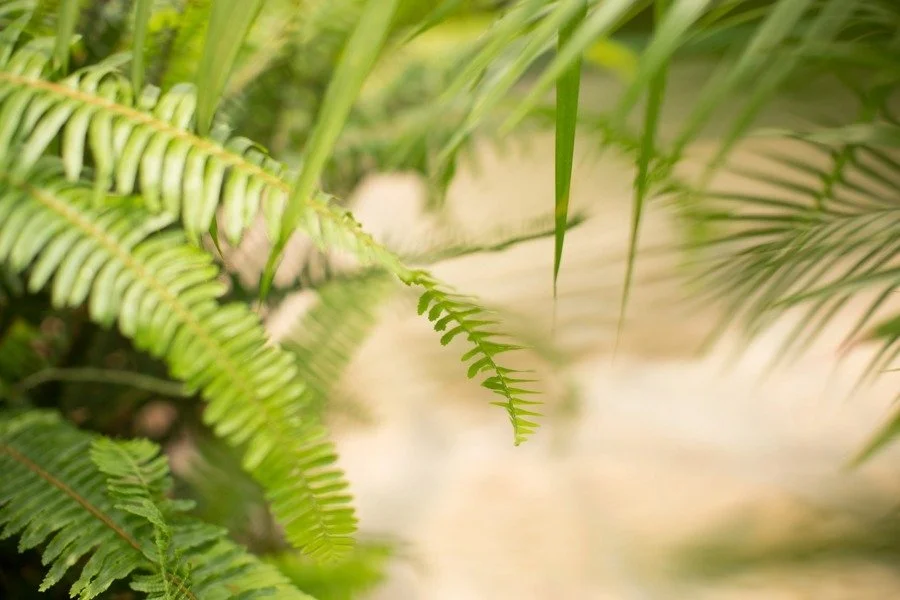
A published fern edit from Jordan’s original HSL lesson.
Start with the whole photo
Before you work on the leaves, look at the subject. Does the whole image look too warm, too cool or too dark? Work on those basic choices first. A large change to white balance can also change how you see the greens.
If brightness is the part you want to work on, start with our lesson on Exposure, Highlights and Whites. Come back to the color once the base edit suits the photo.
Jordan's original HSL lesson follows that order, too. It also makes room for color. A soft edit can still have greens, blues and skin tones you can see.
Find the color you want to change
In Lightroom Classic, open the Develop module and find Color Mixer. Open the Mixer section and choose HSL. Those letters stand for Hue, Saturation and Luminance. Adobe's Color Mixer guide explains these controls and the targeted adjustment tool.
Choose Green as a starting point. Watch the leaves or grass while you make a small change. The part you want may not respond the way you expect. Try Yellow as well, and compare. What you call a green leaf can include more than one color range.
Look beyond the plant. A color control can also change clothing or another object that contains the same color. Color Mixer selects a color range, not a named object.
Use Hue when the green is the wrong shade
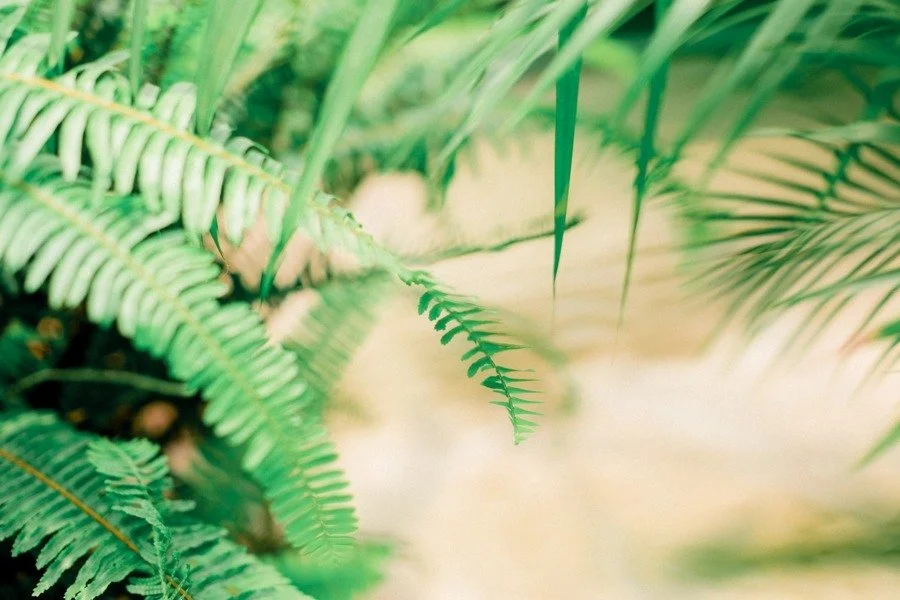
Another published version of the same scene. These versions do not isolate one slider.
Hue changes the color within a range. Move the Green Hue slider a little in each direction and watch the photo. Which direction moves the leaves toward the green you want?
Then return to the starting value and make a smaller move. A large shift can turn a useful change into minty or yellow-looking foliage. Look at the whole photo before you decide.
These fern images come from Jordan's earlier HSL lesson. They show two published versions of the same scene. They are useful for studying how different greens change a photo's look. They do not isolate one slider, and they are not a recipe for matching these colors.
Use Saturation when the color is too strong
If the shade feels right but the green draws more attention than you want, try a small drop in Saturation. Compare it with the starting image. Can you still see the color you liked?
Keep checking as you reduce it. Removing more color does not always bring you closer to your goal. If the leaves start to look gray, return some of that color and compare again.
For a softer green, you may want a small hue change and a small saturation change. Learn what each does on its own before you combine them.
Use Luminance when the green needs to be lighter or darker
Luminance changes the brightness of a color range. It gives you a different choice from making that color less vivid.
Try a small move and watch both the plant and the nearby colors. Does the leaf still have useful detail? Does the background support the subject? A darker green may suit one image. A lighter green may suit another.
You do not need to copy a setting from another photographer's file. The light, the plants and the rest of your edit all help shape the result.
Practice with one photo and four copies
Choose a photo with leaves or grass you can see clearly. Keep one copy as your starting edit. Make three virtual copies in Lightroom Classic.
- On the first copy, change only the Green Hue value.
- On the second, change only Green Saturation.
- On the third, change only Green Luminance.
Put the versions next to each other. Name the change you can see: a different shade, less vivid color, or lighter leaves. Write down the values if you want to repeat the test.
Choose the change that fits this photo. Then check a second image from the same set. You may need a different amount, even when you want the two photos to feel connected.
Questions about editing greens
Why does the Green slider barely change my grass?
The grass may include colors in the Yellow range. Compare the Green and Yellow controls while watching the same patch. Move one at a time.
Why do my greens look gray?
Check how much saturation you removed. Bring some back and compare. Also review the base edit before you add another color adjustment.
Will Color Mixer change only the background?
No. It changes the selected color range wherever that color appears. Check clothing and other objects before you finish.
Are these instructions for Lightroom Mobile?
This lesson uses Lightroom Classic. Other Lightroom apps have color controls, but their layout can differ.