Choose RAW when you want more room to work on color and tone in Lightroom. A RAW file keeps sensor data for a compatible app to process. A JPEG already contains the camera's processed version of the photo.
You can edit both. For the editing approach Jordan teaches, RAW gives you a useful starting file. The choice matters before you press the shutter, so check the camera's recording format before your next practice session.
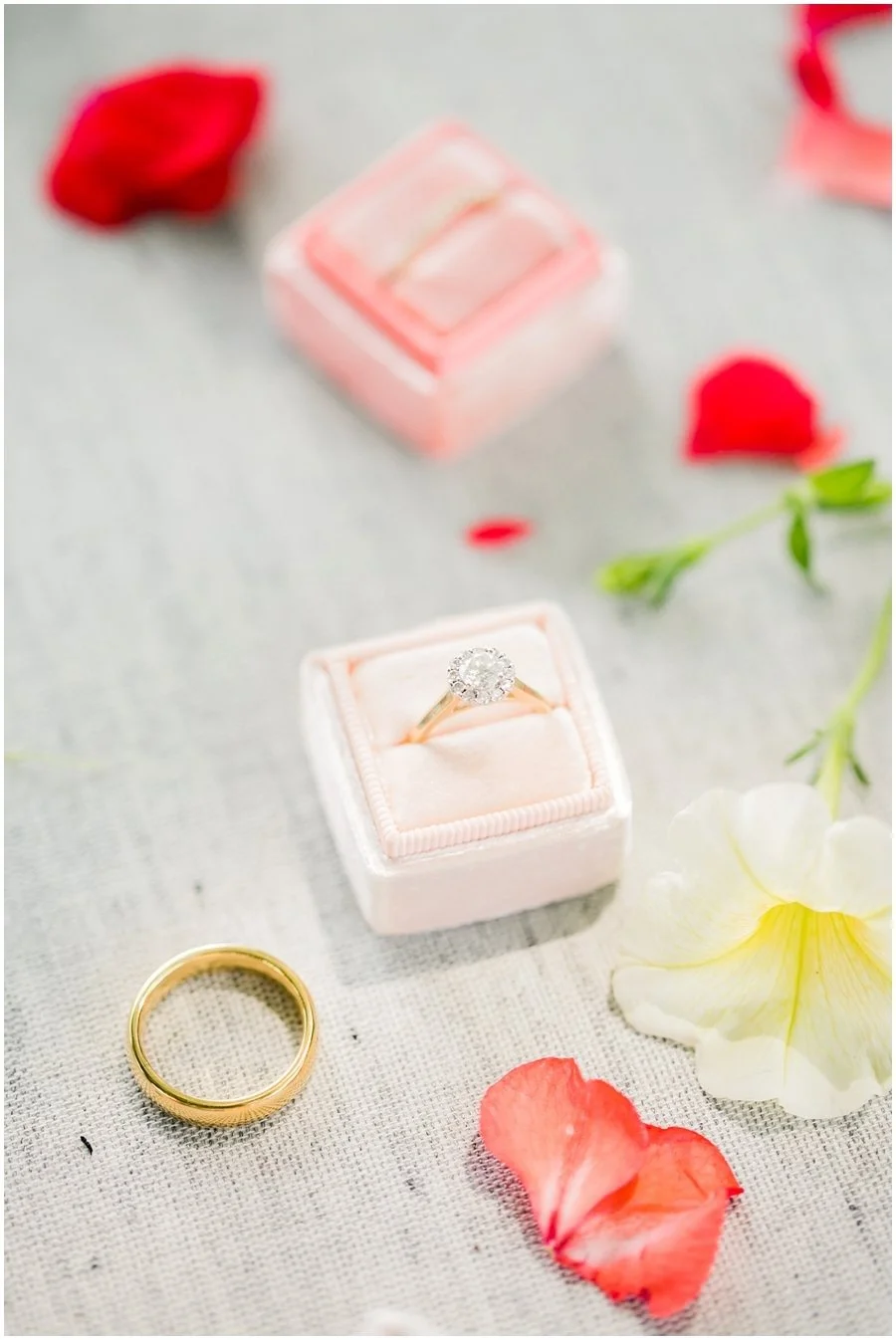
Look at fine detail and color as you edit your own RAW file.
Know what the file choice gives you
JPEG files are made for convenient viewing and sharing. The camera processes the image and saves it in a compressed format. Some of the information used to make that image is no longer available for later editing.
RAW keeps more of the capture data available to a compatible editor. That can help when you adjust white balance or work on bright and dark areas. The amount you can change still depends on the file you captured.
Adobe's RAW and JPEG lesson explains the editing difference. Jordan's own format lesson recommends RAW for her editing style and describes RAW plus JPEG as a way to try the change.
Check the recording format in your camera
Find the image-quality or file-format section in your camera manual. Choose a RAW option that your current Lightroom version supports. Camera menus and file names vary, so use the instructions for your exact model.
If your camera offers RAW plus JPEG, it can save both versions from the same exposure. That gives you a ready-to-view JPEG and a RAW file to edit. It also uses more card space.
Take one test photo and check what was saved. Do that before a session you cannot repeat. A menu choice is more useful when you have confirmed the actual files.
Identify the RAW file before editing
Look at the file type in Lightroom or your file browser. The camera may use an extension such as CR3, NEF or ARW for RAW files. Those are examples, not a complete list. A file ending in JPG or JPEG is the JPEG version.
When a camera saves both formats, the names may look almost the same. Check the type so you know which file you are using for the lesson.
If Lightroom cannot open a new camera's RAW file, check Adobe's supported-camera list and the version requirements. Changing a file's extension does not convert it into a supported format.
Use the extra room with a clear goal
Pick one thing to work on first. You could compare the color of a known neutral surface or study detail in bright fabric. Make a change and judge whether it helps the photo.
The white-balance lesson shows how to use Temperature and Tint. The Exposure, Highlights and Whites lesson helps you choose a brightness control.
The finished photo here gives you objects to study for color and detail. It does not show a controlled RAW-versus-JPEG edit. A published display image cannot tell you what data was available in the camera file.
Keep exposure and focus in the job
RAW gives you editing choices. It cannot put the focus onto a face that was out of focus. It cannot promise detail that the camera did not record in a fully clipped area.
Check important details while you shoot. Look at the subject, the light and the exposure. A useful capture gives you more choices when you start editing.
You also do not need to push every control farther because the file allows it. Choose the change from the photo's needs and the look you want.
Practice with one exposure and two files
- If your camera supports it, choose RAW plus JPEG for a short test.
- Photograph one subject in steady light.
- Identify both file types and open them in your editor.
- Try the same kind of white-balance or brightness change and compare.
Record which file you edited and what you changed. Keep the original files. If you share the finished edit, export a suitable viewing copy rather than treating the RAW file as the final photo.
Questions about RAW and Lightroom
Can a JPEG become a RAW file?
No. Renaming or converting a JPEG does not restore the capture data that was left out when the JPEG was made.
Do RAW files always look finished when I open them?
No. An editor applies a starting interpretation. The first preview is a place to begin your edit, not a promise of the final look.
Should I delete the JPEG as soon as I see the RAW?
Confirm that your RAW files open correctly and that your copies are safe before removing anything. You can decide what to keep after the learning test.