Choose Lightroom Classic if you want your original photos on your own hard drive and you edit mostly at one computer. Choose Lightroom, Adobe's cloud-based app, if you want your originals stored in Adobe's cloud so you can open the same photos on a computer, phone, tablet or web browser.
Both apps share most of the same editing tools. So the real choice is about where your files live and how you like to work, not about which app can make a better edit.
Start with where your original files live
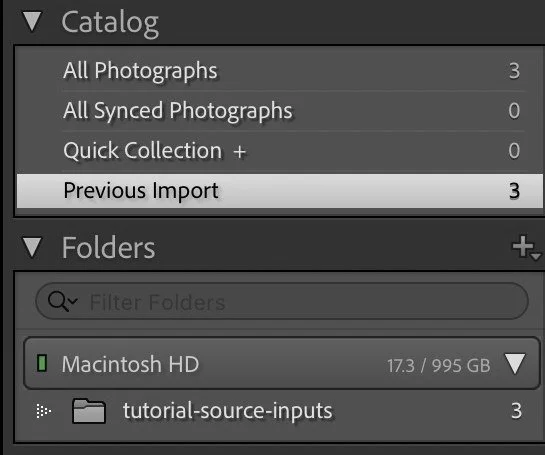
Lightroom Classic keeps your originals in folders on your computer or an external drive. It records where each photo sits, plus your edits, in a catalog, which is a database file that Lightroom Classic reads each time you open it. You can work without an internet connection, though Adobe notes it is needed now and then for licensing and syncing.
Lightroom stores originals in Adobe's cloud and syncs them across your devices. It needs a fast internet connection to do that well. It also has a Local section for photos you keep on a drive.
Adobe's Which Lightroom is right for me? page puts the question plainly. If you take a lot of RAW photos, have terabytes stored or prefer a local drive, it points to Lightroom Classic. If you want your photos backed up and stored in Adobe's cloud, it points to Lightroom.
Count the devices you edit on
Lightroom runs on desktop, mobile and the web. Lightroom Classic is a desktop app. You can still reach some Classic photos on your phone by syncing a collection, which sends a smaller editing copy called a Smart Preview to the cloud.
Think about a normal week. Do you edit at one desk? Or do you start on a laptop and finish on your phone while you wait somewhere? Write down the devices you actually use.
Compare the editing tools
Adobe's feature comparison lists the core editing tools in both apps. That includes Exposure and the other tone sliders, Color Grading, Masking with Select Subject and Select Sky, the Remove tool, Denoise and Lens Blur.
The differences show up around the edit. Lightroom Classic has a History panel and Snapshots, which save earlier states of an edit. Lightroom uses Versions instead. Classic makes virtual copies, which are extra edits of one file that don't take up the space of a new file. Lightroom makes duplicates.
Jordan's Lightroom versions lesson sorts the apps by job: Lightroom Classic for detailed work on a full shoot, and Lightroom on her phone for phone photos and quick edits. That split still fits the way Adobe describes each app today.
Think about big shoots
If you often come home with hundreds of photos from one event, look at the tools for working through a set. Lightroom Classic lets you rename photos during import, add color labels, compare several frames in Survey view and shoot tethered, which means sending photos straight from the camera into the app. It also prints to a local printer and works with third-party plug-ins.
Both apps can copy one photo's settings to many others. In Classic, select the photos and use Sync in the Develop module. If most of your work comes in big sets, try that step in each app before you decide.
Plan your backup either way
With Lightroom, your cloud plan's storage size sets how many originals can live there. Check your plan before you upload years of photos.
With Lightroom Classic, backup is your job. Keep a copy of your photo folders and your catalog on a second drive. Jordan's lesson explains that she chose a plan without the large cloud storage because she backs up to her own hard drive.
You don't have to pick only one. Adobe's Photography plan includes both apps, and Classic can sync chosen collections to Lightroom. Some photographers edit full shoots in Classic and use Lightroom on a phone for a few photos.
Practice with one small shoot
- Write down where your photos live now, about how much space they take and which devices you edit on.
- Pick the app that matches those answers.
- Import 20 photos from one shoot. Edit one, then copy its settings to five others.
- Close the app, open it again and find one photo by its capture date.
Check three things. Do you know where the original files are? Did the copied settings land on the right photos? Could you find the photo quickly? If any answer is no, try the same steps in the other app. For your first edits, our RAW lesson and white balance lesson give you a place to start in Lightroom Classic.
Questions about Lightroom and Lightroom Classic
Is the Lightroom app on my phone the same as Lightroom?
Yes. Lightroom for mobile is part of the same cloud-based family as Lightroom for desktop and Lightroom on the web.
Can I edit Lightroom Classic photos on my phone?
Yes, through synced collections. Lightroom Classic sends Smart Previews to the cloud so the photos in those collections appear in Lightroom on your phone.
Which one is better for RAW files?
Both open RAW files. Adobe points people with many RAW files stored on a local drive toward Lightroom Classic. Choose by storage and devices, then test the editing steps you use most.