To lock focus and exposure on an iPhone, open the Camera app and touch and hold the part of the frame you care about. Keep holding until AE/AF Lock appears. AE means auto exposure, which is how bright the camera makes the photo. AF means autofocus, which is the part of the scene the camera makes sharp.
Once the lock is on, you can drag the brightness control up or down and take several photos in a row. The phone keeps that focus and brightness until you tap the screen again.
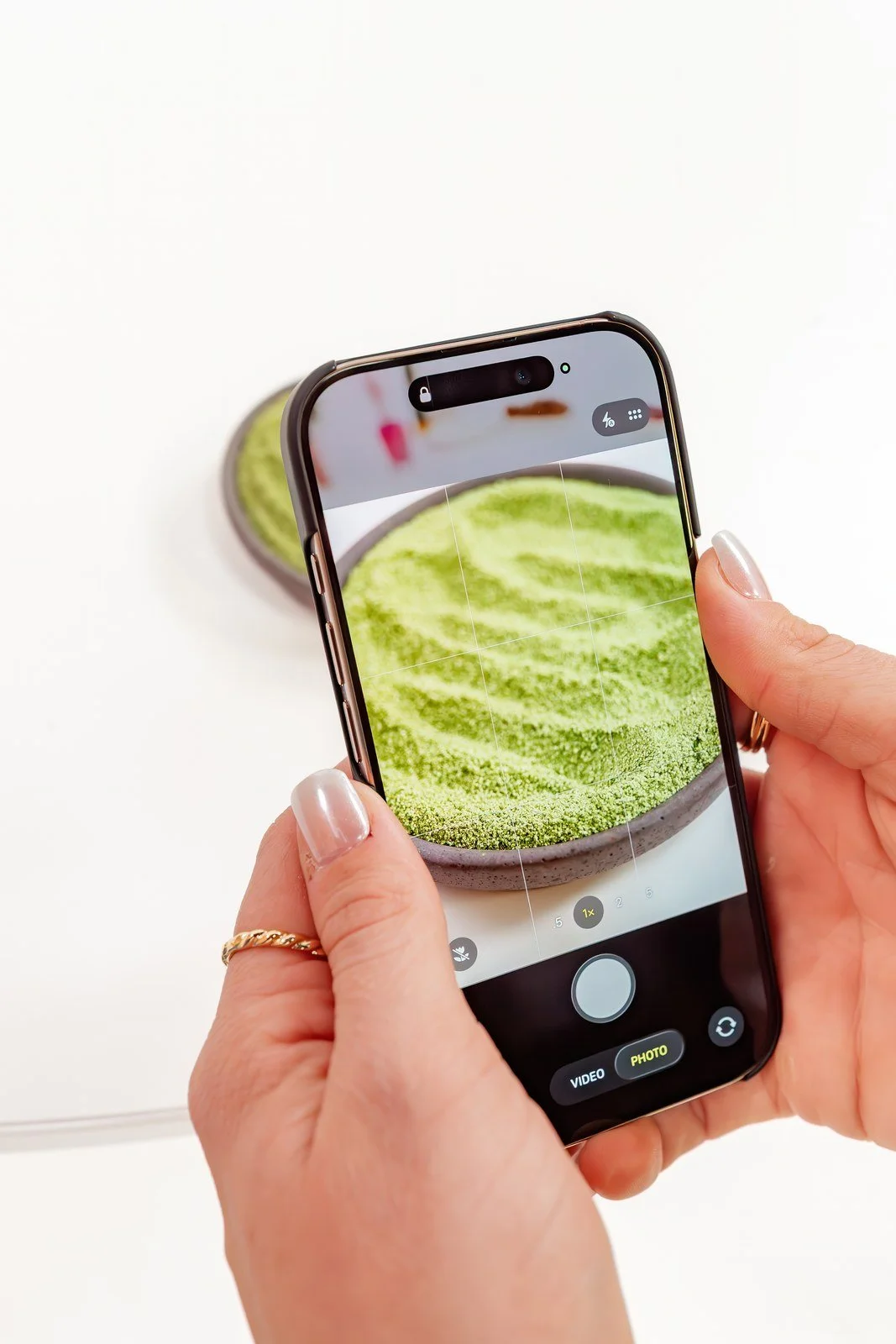
Know what the camera does on its own
When you open the Camera app, the iPhone picks a focus point and a brightness for you. Apple's guide says face detection also balances exposure across faces. That works well for many quick photos.
It can go wrong when the most important thing is small, off to one side or much darker or brighter than the rest of the frame. Picture a cup of coffee near a sunny window. The phone may brighten the dark table and turn the window plain white, or protect the window and leave the cup too dark.
A lock tells the phone which part of the photo matters to you. It doesn't make the light better. Moving the cup closer to the window often helps more than any setting, and Jordan's iPhone photography lesson teaches the same habit: move your subject to the brightest spot, such as next to a window, before you worry about settings.
Tap, then set the brightness
Tap the screen on the thing you want sharp. A small box shows the focus area. Next to it, you'll see a small sun icon. Drag it up to make the photo brighter or down to make it darker.
Look at the part of the photo you care about while you drag. For a face, watch the skin on the cheeks and forehead. For a white mug, watch the rim. Stop when that area still shows detail and the rest of the photo looks the way you want.
This tap is a one-photo choice. If you move the phone or the scene changes, the camera can pick a new focus and brightness for the next shot.
Touch and hold to lock
To keep those settings for upcoming photos, touch and hold the focus area until AE/AF Lock appears near the top of the screen. Now drag the sun icon to set the brightness. Apple's guide to iPhone camera tools describes this lock and says to tap the screen to release it.
The lock is useful when you want to change the framing without losing your choice. You can lock on a face in the center, then move the phone so the person sits to one side. You can also take a series of photos that match in brightness, such as a few shots of a plate of cookies from slightly different angles.
Keep the distance to your subject about the same after you lock. If you step much closer or farther away, the focus you locked may no longer land on the subject.
Check what your model offers
The Camera app changes between iPhone models and iOS versions. Apple's current guide says that on iPhone 18 Pro models and iPhone Duo, focus and exposure are separate controls, so changing one doesn't change the other. Models with the Camera Control can also reach an Exposure setting through it.
There's also an Exposure control in the camera tools. It locks a brightness level until the next time you open Camera. If you want it to stay, Apple points to Settings, then Camera, then Preserve Settings, where you can turn on Exposure Adjustment.
If your screen doesn't match these steps, open the iPhone User Guide for your model and iOS version. The idea stays the same: choose the important spot, set its brightness, then keep it steady.
Know when to skip the lock
A lock can work against you when the light or distance keeps changing. A child running toward you moves out of the focus you set. Walking from shade into sun changes how bright the scene is. In those moments, tapping again or letting the phone choose may serve you better.
Brightness is also partly taste. A bright, airy look and a darker, moody look can both be good photos. The lock gives you control over which one you get. If you want to learn more about where light falls on a person, the light direction lesson is a good next step.
Practice with one window
- Put a mug or a small plant on a table beside a window.
- Take one photo without tapping anything.
- Tap on the object and drag the sun icon until the object looks right. Take a second photo.
- Touch and hold on the object until AE/AF Lock appears. Set the brightness, then move the phone so the object sits off to one side. Take three photos.
Compare all five. Check whether the object is sharp, whether the window kept some detail, and whether the three locked photos match each other in brightness. If they don't match, look at whether the phone or the light moved. To try the same window with a person, the window light portrait lesson shows where to place them.
Questions about iPhone focus and exposure lock
How do I turn off AE/AF Lock?
Tap anywhere on the screen. The lock ends and the camera goes back to choosing focus and brightness.
Why is my locked photo blurry?
Check whether you moved closer or farther away after locking, or whether the subject moved. Lock again at the new distance. Holding the phone very close to a small object can also stop the camera from focusing.
Should I always make the photo brighter?
No. Choose the brightness that keeps detail where you need it and fits the look you want. A dark photo can be a good choice when it suits the scene.